We have received a number of comments and queries about the first phase of our new charts, these FAQs are designed to address these issues:
How do I copy trend lines?
If you want to add more than one Draw Tool of the same type, use the Add Draw Tool button and then click the Pin Draw Tool button before selecting the Draw Tool you want to add. Once you have added all the Draw Tools you need, click the Pin Draw Tool button again to turn the Tool off.
[
Close ]
How do I draw or configure horizontal lines.
Under Draw Tools, select Horizontal S/R Lines. Once the Horizontal S/R Line is created, right click on the line to display a range of configuration options.
[
Close ]
How do I add and configure multiple layers of the same Oscillators?
Click on the Oscillator option icon next to the double arrows to bring up the Oscillator Manager. Select an oscillator you want from the drop-down list, specify your required configuration values and click Add to List. If you want more than one Oscillator, simply repeat the process.
[
Close ]
How do I add and configure multiple layers of the same studies?
Click on the Studies option icon next to the double arrows to bring up the Studies Manager. Select an Study you want from the drop-down list, specify your required configuration values and click Add to List. If you want more than one Study, simply repeat the process.
[
Close ]
How do I create a bigger contrast between the chart background and a Draw Tool?
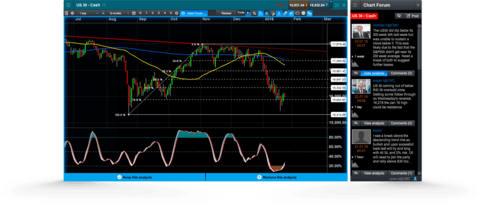
You can change the colour of the drawn object by left clicking on indicator title (top left) for changing the colour or the style of your line.
[
Close ]
How do I accurately position a cursor or line?
Use the cursor options in the settings menu to help place your cursor or line. In addition, we have included draw assist functions which allows for snapping to high/low or close values. Once the line is positioned, it can be adjusted using the configure options to change the price points and intervals.
[
Close ]
How do I quickly access the draw tools?
Click on the draw tool icon located on top of your chart - see Section 5 of the User Guide.
[
Close ]
Why do the settings panels take up so much space?
The width of the settings panel can be adjusted by dragging the divider on its right hand side, the top toolbar can also be hidden using the button above the price axis on the right hand side of the chart.
[
Close ]
Where are my existing IT Finance chart settings?
When you migrate to the new chart package, your drawings and indicators will be lost. However, when you reapply them to the new charts and save your layout they will be restored with your charts next time you open the layout.
[
Close ]
How do I save the chart indicators, layouts and settings that I have just applied?
To save the layout for the charts you have configured, click on the Save Layout link in the File menu. Type in a name for the layout and save. It will then appear in the layout drop down list for future use.
[
Close ]
The decision to move away from a third-party provider gives us full control over the development of our charts and lets us add in new functionality. To this end, we are compiling a list of client requests which are all under consideration for inclusion in future upgrades.